
Dashboards and reporting
The management dashboard puts outstanding actions before historical detail. Review the selected sites and dates before interpreting any figure. An unavailable metric is not zero, and an unconfigured schedule is not a missed expected check.
Audience: Business administrators and permitted managers
Last reviewed: 2026-11-01
The management dashboard puts outstanding actions before historical detail. Review the selected sites and dates before interpreting any figure. An unavailable metric is not zero, and an unconfigured schedule is not a missed expected check.
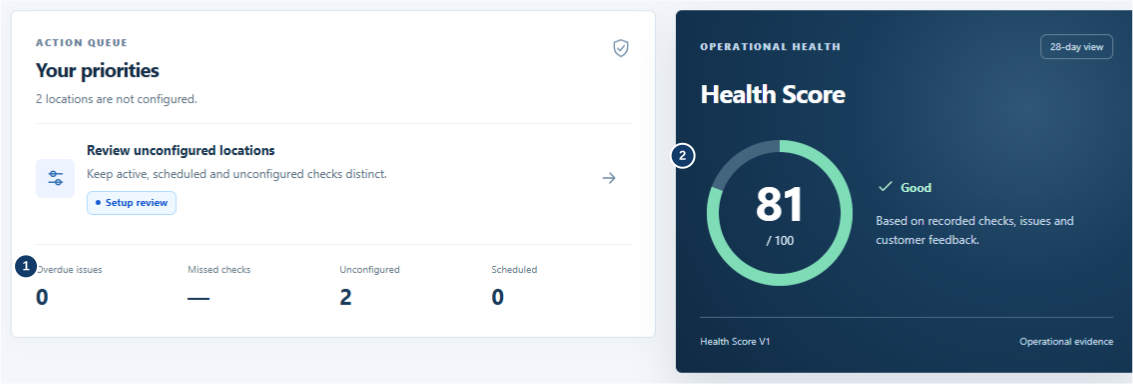
- Read misses, overdue issues and unconfigured rooms separately.
- Read the Health Score with its available evidence.

- Unavailable compliance needs schedule setup; it is not zero.
- Open issues include open and acknowledged reports.
- Resolution time measures completed corrective work.
- Customer experience uses recorded ratings.
Read the dashboard from top to bottom
- Confirm location and time. Check the sites and period represented before comparing results.
- Start with actions. Open an outstanding issue or a location requiring attention. A preview is a shortcut, not a complete history.
- Read each KPI separately. Completed checks, missed windows and overdue issues measure different things.
- Review the Health Score where available. Check whether it has enough data; it is a guide to recorded activity, not a hygiene certificate.
- Open history or Reports. Follow the related links for older records and use the same location/date filters.
Completed checks are saved staff events. Missed expected checks are scheduled windows without a completed check that meets the schedule requirements. Overdue issues are unresolved or unacknowledged problems that have breached an applicable target. Unconfigured locations need schedule setup. These categories answer different operational questions and should not be added together as if they were the same thing.
A later check can restore the current operational state without deleting a genuine earlier miss. A temporarily suppressed notification does not improve compliance figures. Health Score, where available, is an application indicator based on its configured inputs, not a hygiene certificate or legal-compliance assessment. Do not compare sites without checking schedule coverage and data completeness.
Run a report
- Open Reports with a permitted manager account.
- Select the date range and the site/Control Point filters available to your role.
- Apply the filters and check that the requested locations and dates are shown.
- Review full-result totals and page through the records. A five-item preview is not the full history.
- Use the export control where provided, then store the file with appropriate access restrictions.
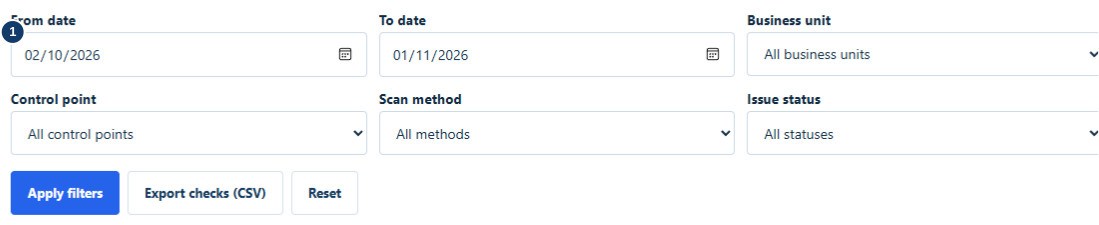
- Choose dates and permitted locations, then apply filters.
Use on-demand reports and the room histories available to your role. Store exports securely and share them only with people who need access.
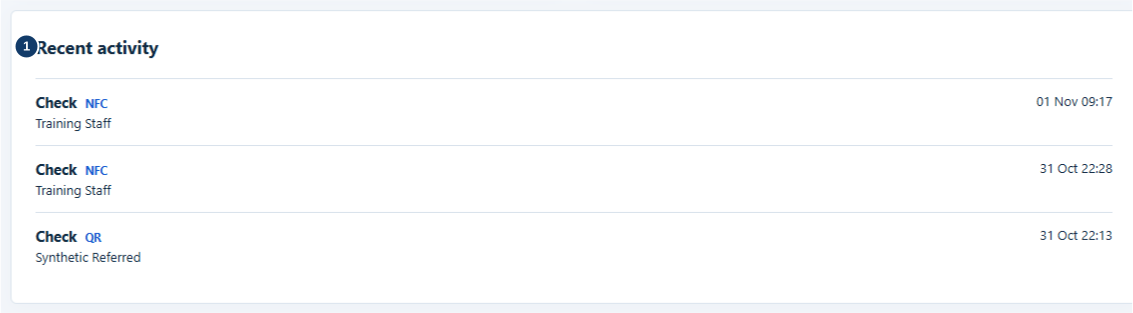
- Check the recorded staff member, scan method and local time.